
Quick Answer: Upload your capstone paper or research report to ChatSlide.ai and get a polished 15–20 slide presentation in under 2 minutes. The AI extracts your key findings, generates charts from your data, and applies an academic-style design — free with student-friendly limits.
The Capstone Presentation Challenge
You have spent an entire semester — or an entire year — on your capstone project. You have written the report, run the experiments, built the prototype, collected the data. Now you need to present it all to a faculty panel in 15 to 20 minutes.
This is where most students hit a wall.
Capstone presentations are uniquely difficult because they require you to compress months of work into a concise, visually compelling slide deck. Unlike a regular class presentation, your capstone defense is typically:
- Graded by a panel of professors, industry advisors, or external examiners — not just your instructor
- Comprehensive — covering everything from problem statement to future work
- Technical and accessible — your audience includes specialists in your field and committee members from adjacent disciplines
- Time-constrained — going over time signals poor preparation and can cost you points
Students across every discipline face this pressure. Whether you are presenting a software engineering project in computer science, a process improvement study in engineering, a market analysis in business, a clinical intervention plan in nursing, or a curriculum design project in education — the stakes are the same.
The typical approach is to spend 8 to 15 hours manually building slides in PowerPoint: re-reading your report, pulling out key sections, designing layouts, creating charts, writing speaker notes, and rehearsing. If you are looking for a way to turn your capstone report into a PowerPoint presentation automatically, or need a capstone slide maker that understands academic formatting, AI can reduce that to under an hour.
What Makes a Strong Capstone Presentation
Before diving into the tool, it helps to understand what evaluators are looking for. A well-structured capstone presentation generally follows this flow:
1. Title and Introduction (1-2 slides)
State your project title, your name, your advisor, and the date. Give a one-sentence summary of what your project does and why it matters.
2. Problem Statement (1-2 slides)
Define the problem you set out to solve. Why does it matter? Who is affected? What gap exists in current solutions? This is the slide your evaluators will use to judge whether your project has real-world relevance.
3. Literature Review (1-2 slides)
Summarize the existing research and solutions that informed your work. You do not need to cover every source from your report — highlight the 3 to 5 most important references that directly shaped your approach.
4. Methodology (2-3 slides)
Explain how you approached the problem. For a computer science project, this might be your system architecture. For a nursing capstone, it could be your intervention design. For a business capstone, your analytical framework. Include diagrams, flowcharts, or process models where possible.
5. Implementation and Development (2-3 slides)
Show what you actually built, created, or executed. Include screenshots, code snippets, prototypes, or process documentation. This is where your audience sees the tangible output of your work.
6. Results and Demo (2-4 slides)
Present your findings with data. Charts, graphs, and tables are essential here. If your project includes a working prototype or application, include screenshots or describe a brief live demo. Quantify your outcomes wherever possible.
7. Lessons Learned and Challenges (1-2 slides)
Evaluators value self-awareness. What went wrong? What would you do differently? What skills did you develop? This section demonstrates maturity and critical thinking.
8. Future Work and Conclusion (1-2 slides)
Where could this project go next? What would you add with more time or resources? End with a clear, confident summary of your contribution.
9. References and Q&A (1 slide)
List your key sources and open the floor to questions.
That is 12 to 20 slides — a solid range for a 15 to 20 minute presentation. The challenge is getting all of this organized, designed, and polished without spending your entire weekend on it.
Step-by-Step: Build Your Capstone Presentation with ChatSlide
ChatSlide is an AI presentation maker that lets you upload your capstone report and generate a structured slide deck from it. Here is the full workflow.
Step 1: Upload Your Capstone Report or Draft
Go to ChatSlide and start a new project. You have three input options:
- File upload — Upload your capstone report directly. ChatSlide supports PDF, Word (.docx), PowerPoint (.pptx), and images. If your report is a Word document (which most capstone drafts are), upload the .docx file and the AI will parse its full structure — headings, body text, tables, and figures.
- URL input — If your project has a published write-up, a GitHub repository page, or a related YouTube demo video, you can paste the URL and ChatSlide will extract content from it.
- Text prompt — If you are starting from scratch or want to generate a presentation based on a topic description, type a summary of your project and let the AI build an outline.
For most capstone students, the file upload option is the fastest path. You have already written the report — let the AI do the work of converting it into presentation format.
Step 2: Review and Refine the AI-Generated Outline
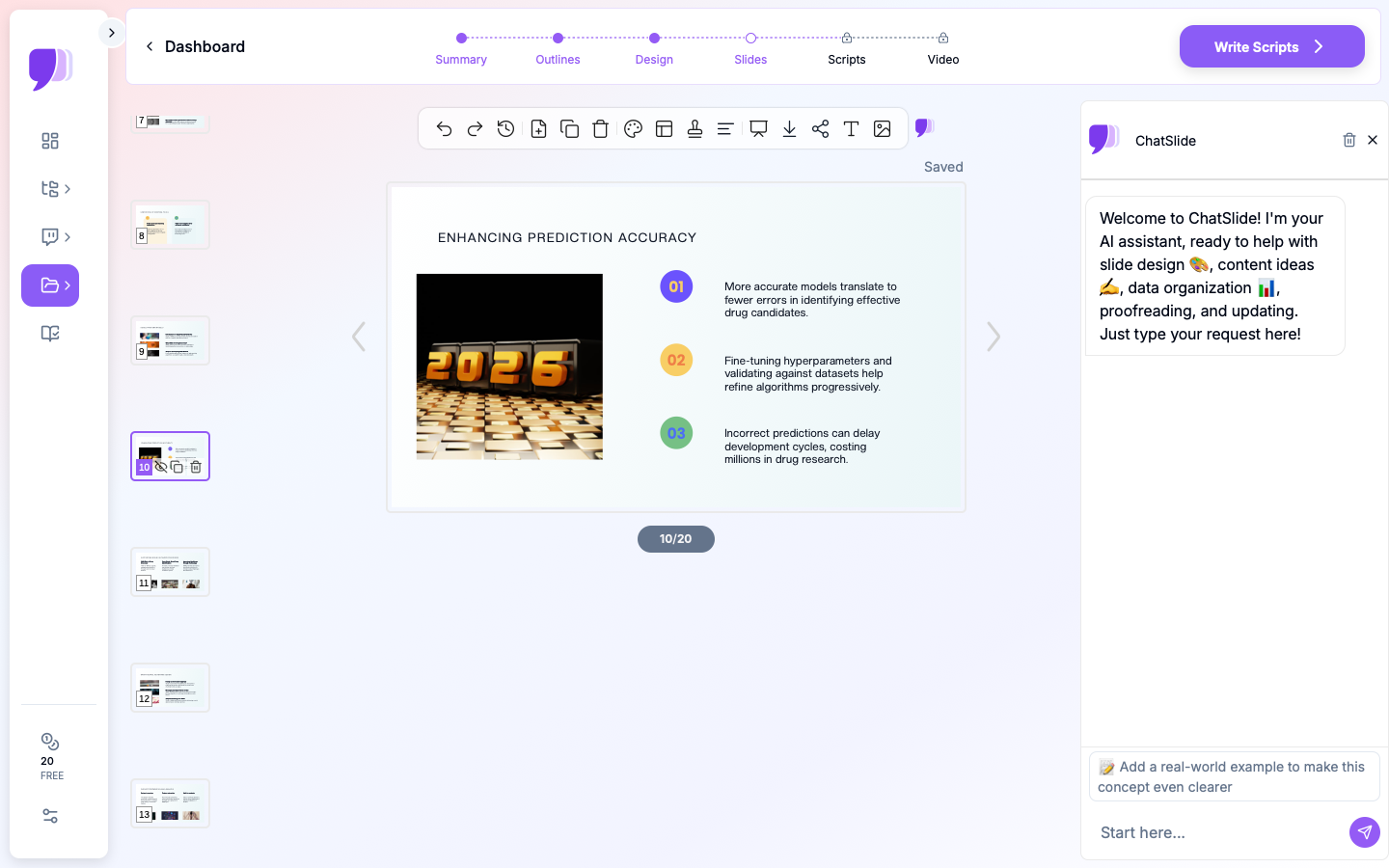
After processing your document, ChatSlide generates a structured outline for your slide deck. The AI identifies the major sections of your report and maps them to a logical presentation flow.
Review the outline carefully. You can:
- Reorder sections to match your preferred presentation flow
- Remove sections that are too detailed for a slide format (your full literature review, for example, should be condensed)
- Add sections the AI might have missed, such as a demo slide or an acknowledgments slide
- Adjust the number of slides per section based on your time limit
This step takes 2 to 5 minutes and gives you full control over the structure before any slides are generated.
Step 3: Select a Design Template
ChatSlide offers a range of professional templates. For capstone presentations, choose a clean, academic-friendly design — avoid overly flashy templates that might distract from your content. A simple color scheme with clear typography works best for panel evaluations.
Consider your institution's branding if applicable. Some programs require slides to follow a specific template or include a university logo, which you can add after generation.
Step 4: Generate and Customize Your Slides
Click generate and ChatSlide builds your full slide deck. Each slide includes:
- A clear title derived from your report's section headings
- Concise bullet points or narrative text summarizing key content
- Proper visual hierarchy so your audience can follow along
Now use ChatSlide's 19 AI editing tools to refine individual slides. These tools use function calling to directly modify slide elements rather than just suggesting changes. You can:
- Rewrite text — ask the AI to simplify technical language for a broader audience or make a bullet point more specific
- Batch edit — apply changes across multiple slides at once, such as "shorten all slide titles to under 8 words" or "make the tone more formal"
- Adjust layouts — rearrange content, resize elements, or change the visual structure of any slide
- Choose an editing mode — ChatSlide offers four modes ranging from light touch-ups to full AI-driven rewrites, depending on how much control you want
Step 5: Add Charts and Visualizations from Your Data
If your capstone project involves quantitative data — survey results, experimental measurements, performance benchmarks, financial projections — ChatSlide can generate charts directly from your data. The AI creates proper visualizations rendered from real numbers rather than generic placeholder graphics.
Upload a dataset or describe the data you want to visualize, and ChatSlide generates bar charts, line graphs, scatter plots, pie charts, and more. For a computer science capstone, this might be a performance comparison chart. For a business capstone, a revenue projection graph. For a nursing capstone, patient outcome statistics.
Step 6: Generate Speaker Notes and Practice Scripts
One of the most underused features for capstone students is ChatSlide's script generation. The AI creates speaker notes for each slide, giving you a ready-made script to practice with.
This is especially valuable for capstone presentations because:
- You can time your run-through against the speaker notes to check if you are within your 15 to 20 minute window
- The notes help you remember key data points and technical details without overloading your slides with text
- You can refine the notes to sound natural rather than reading verbatim from your report
Step 7: Export to PowerPoint
When your deck is finalized, export it as a .pptx file. This is critical for capstone presentations because:
- Most university presentation rooms use Windows machines with PowerPoint
- Your advisor or committee may want to review or edit your slides
- You can make last-minute adjustments on campus without needing internet access
- Some programs require you to submit your slides in PowerPoint format alongside your report
ChatSlide's PowerPoint export preserves your layouts, charts, formatting, and speaker notes in a fully editable .pptx file.
Tips for a Successful Capstone Presentation
Even with a polished slide deck, your delivery matters. Here are practical tips that apply across every discipline.
Know Your Audience
Your panel likely includes your advisor (who knows your project deeply), other faculty (who may have only skimmed your abstract), and possibly an external examiner (who is seeing your work for the first time). Design your presentation for the person with the least context — if they can follow along, everyone can.
Practice Your Timing
A 20-minute slot usually means 12 to 15 minutes of presentation and 5 to 8 minutes of Q&A. If your practice run takes 18 minutes, you are over — you will speak slower on presentation day due to nerves. Aim for your practice run to finish at the 12 to 13 minute mark.
Highlight Your Contribution
Evaluators want to know what you did, not just what the project is about. Be explicit about your personal contribution, especially in team-based capstones. Use language like "I designed," "I implemented," "my analysis showed" to make your individual role clear.
Prepare for Q&A
Most capstone evaluators ask about:
- Methodology decisions — "Why did you choose this approach over alternatives?"
- Limitations — "What are the weaknesses of your solution?"
- Future work — "If you had another semester, what would you add?"
- Technical depth — "Can you explain how this specific component works?"
Having clear answers to these questions demonstrates mastery. Practice with a friend or classmate who can play the role of an evaluator.
Less Text, More Visuals
A common mistake in capstone presentations is cramming too much text onto slides because the student is afraid of forgetting something. Your slides should support your talk, not replace it. Use visuals — diagrams, charts, screenshots, process flows — and let your spoken words provide the detail.
Have a Backup Plan
Technology fails. Bring your slides on a USB drive, have a PDF backup on your phone, and know your presentation well enough to continue if the projector goes down. Panel members will remember how you handled adversity.
Why ChatSlide Works for Capstone Students
Generic AI presentation tools often produce slides that look like marketing decks — heavy on aesthetics, light on substance. Capstone presentations need the opposite: structured, content-rich slides that demonstrate academic rigor.
ChatSlide bridges that gap because it was built to handle document-to-presentation workflows. When you upload your 30-page capstone report, the AI does not just pull random sentences — it identifies your document's structure and maps it to a logical presentation format. Combined with features like AI chart generation from real data, a persistent knowledge base for your project files, and full PowerPoint export, it covers the entire capstone presentation workflow from first draft to final delivery.
Whether you are defending a senior capstone project in computer science, presenting an engineering design capstone, delivering a final-year business strategy presentation, or showcasing a nursing evidence-based practice project, the process is the same: upload, generate, customize, practice, present.
Get Started
Your capstone presentation does not have to take all weekend. Whether you need to create a senior capstone presentation from a Word document, build final year project slides for your engineering defense, or make a nursing capstone PowerPoint for your panel review, ChatSlide handles it. Upload your report to ChatSlide and generate your first draft in minutes. Spend the time you save on what actually matters — rehearsing your delivery and preparing for questions.