Quick Answer: Google Slides cannot curve text natively — no menu, no Word Art option, no hidden setting. The practical fixes: (1) generate the curved text as an image with a free curved-text tool and Insert → Image it (fastest, best-looking); (2) create it in PowerPoint with Text Effects → Transform → Arch, then import the slide; (3) for short words, rotate individual letters by hand. Method 1 is what most people should do.
Why there's no button for this
PowerPoint has had Text Effects → Transform (arch, circle, wave) for two decades, so everyone assumes Slides has an equivalent buried somewhere. It doesn't — Google Slides' Word Art (Insert → Word art) only does straight text with fill and outline, and Google Drawings has the same limitation. Every "curve text in Google Slides" result that promises a native toggle is describing software that doesn't exist.
What you can do is produce curved text elsewhere and place it as an image. Three routes, best first:
Method 1 — Curved-text generator → insert as image (5 minutes, best result)
- Use any free curved/circular text generator on the web (search "curved text generator" — several no-signup options exist; tools like MockoFun and Canva also do this on free tiers).
- Type your text, set the curve radius, match your slide's font as closely as possible, and set the background to transparent.
- Download as PNG (transparency preserved).
- In Slides: Insert → Image → Upload from computer, then position and scale.
Tips that make it look native: pick the exact hex color of your theme text (grab it from a text box's Text color → Custom), export at 2× the display size so it stays sharp on projectors, and group the PNG with any shape it wraps around (select both → right-click → Group) so they move together.
The one real drawback: the text is now pixels. Fixing a typo means regenerating the image — proof-read before you export.
Method 2 — PowerPoint round-trip (editable curves)
If you have PowerPoint (desktop or the free web version):
- In PowerPoint: Insert → Text Box, type the text, then Shape Format → Text Effects → Transform and pick Arch Up, Circle, or any curve.
- Save the file and import into Slides: File → Open → Upload in Google Slides, or Insert → Slides from another presentation.
- The curved text arrives as an editable drawing object in most cases; complex transforms may flatten to an image depending on the effect.
This round-trip is worth knowing anyway — decks move between the two ecosystems constantly (full conversion guide here).
Method 3 — Manual letter rotation (short words only)
For a 3–8 letter word on a badge or logo-style layout:
- Insert each letter as its own Word art (Insert → Word art) or text box.
- Rotate each one a few degrees more than the last (select → drag the rotation handle, or Format options → Size & rotation for exact angles — e.g. −30°, −15°, 0°, 15°, 30°).
- Nudge each letter along an imaginary arc, then select all → Group.
A tidier variant of the same idea: do the assembly in Insert → Drawing — draw a temporary circle as a guide, rotate each text segment along it, delete the guide circle, and Save & Close. The result lands on your slide as a single linked drawing you can re-edit later, instead of a dozen loose text boxes.
Tedious but fully editable, and for short display words it can look genuinely hand-lettered.
When curved text is part of a bigger design job
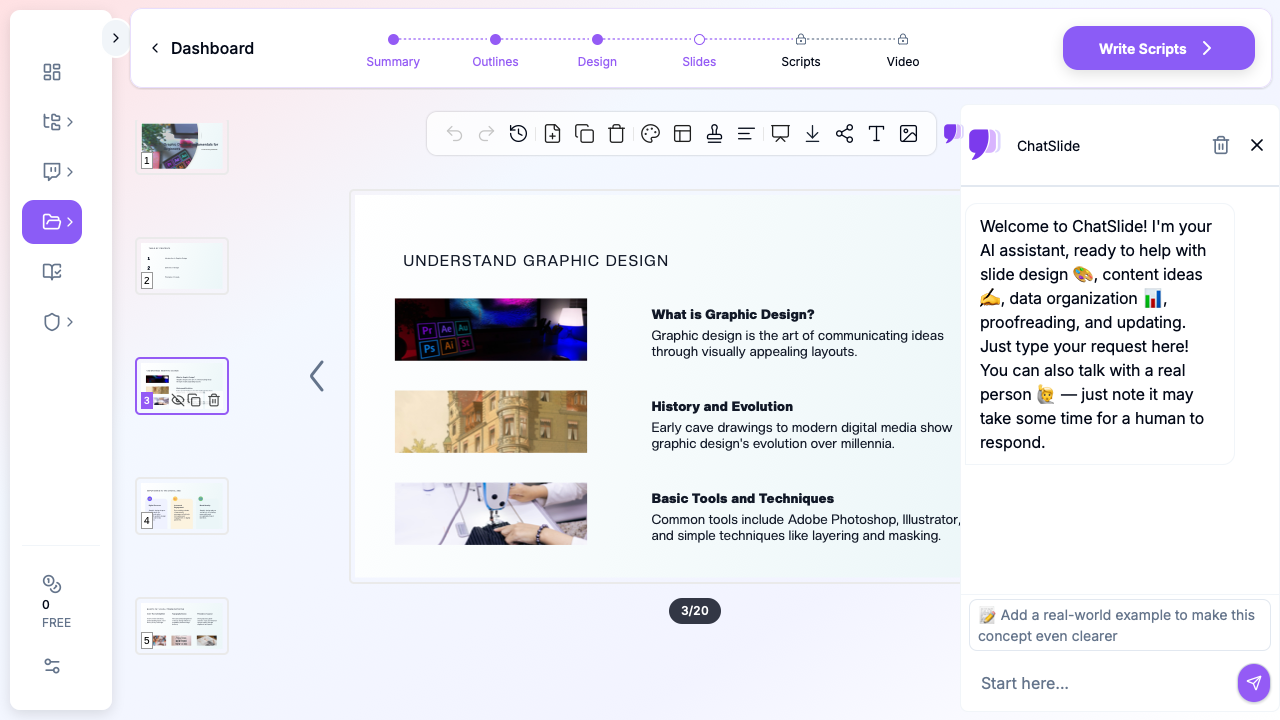
Curved text usually shows up in logo slides, certificates, posters, and title cards — the slides where design time balloons. If the whole deck needs that level of polish, generating it beats decorating it: ChatSlide produces designed decks from a document or topic (with an AI image generator built in for exactly this kind of display asset), exporting to Google Slides or native PowerPoint — where the text effects stay editable.
FAQ
Can Google Slides curve text without add-ons? No. There is no native curve/arch/transform for text, including Word Art. Image insertion or a PowerPoint round-trip are the real options.
Is there a Google Slides add-on for curved text? Some Workspace Marketplace add-ons generate curved text as images inside Slides — functionally the same as Method 1 with fewer tabs.
Does Google Drawings support curved text? No — same engine, same limitation.
Will curved text made in PowerPoint stay editable in Slides? Simple arches usually import as editable objects; fancier transforms may flatten. Test with your specific effect before building the whole slide around it.