Quick Answer: To record yourself presenting slides without a webcam, upload your deck (or PDF) to ChatSlide.ai, pick an AI avatar and a voice, and the platform generates a narrated MP4 video in 2–5 minutes. The avatar lip-syncs to AI-generated speech written from your slide notes — no studio, no retakes, and you can re-export instantly when content changes.
The Problem with Webcam Recordings
Recording yourself presenting slides on a webcam sounds simple. In practice it is the slowest, most fragile part of any video presentation workflow.
You need decent lighting, a clean backdrop, and a quiet room. You need to nail the delivery on the first take, or restart from slide one. You squint at the prompter while trying to look at the camera. The dog barks. The kids come home. Your voice sounds flat after the third take. And the moment one slide changes, the whole recording goes stale.
For sales reps sending decks to global prospects, async standups across time zones, eLearning content that gets updated quarterly, or conference talks that need to be re-shot in another language — webcam-based recording does not scale.
There is a faster path.
Webcam Recording vs AI Avatar Recording
The difference is not just speed — it is whether you can iterate.
| Factor | Webcam recording | AI avatar recording |
|---|---|---|
Setup time | 15–30 min (lighting, audio, prompter) | 0 min |
Recording time | 1–3× the slide duration (retakes) | Generation runs in the background |
Editing | Cut, trim, color correct, denoise | Auto-rendered, no editing |
Slide change cost | Re-record from scratch | Re-export — minutes |
Multilingual | Re-record for each language | Switch language, regenerate |
Polish ceiling | Bounded by your home setup | Studio-grade voice + avatar |
Privacy | Your face on the internet | Your slides, your voice off-camera |
For "good enough on the first take" content — investor updates, client onboarding videos, internal training, async product demos — AI avatar wins on time-to-publish by an order of magnitude. For deeply personal content (your founder story for a pitch competition), the webcam still has its place.
Step-by-Step: Record a Presentation with an AI Avatar
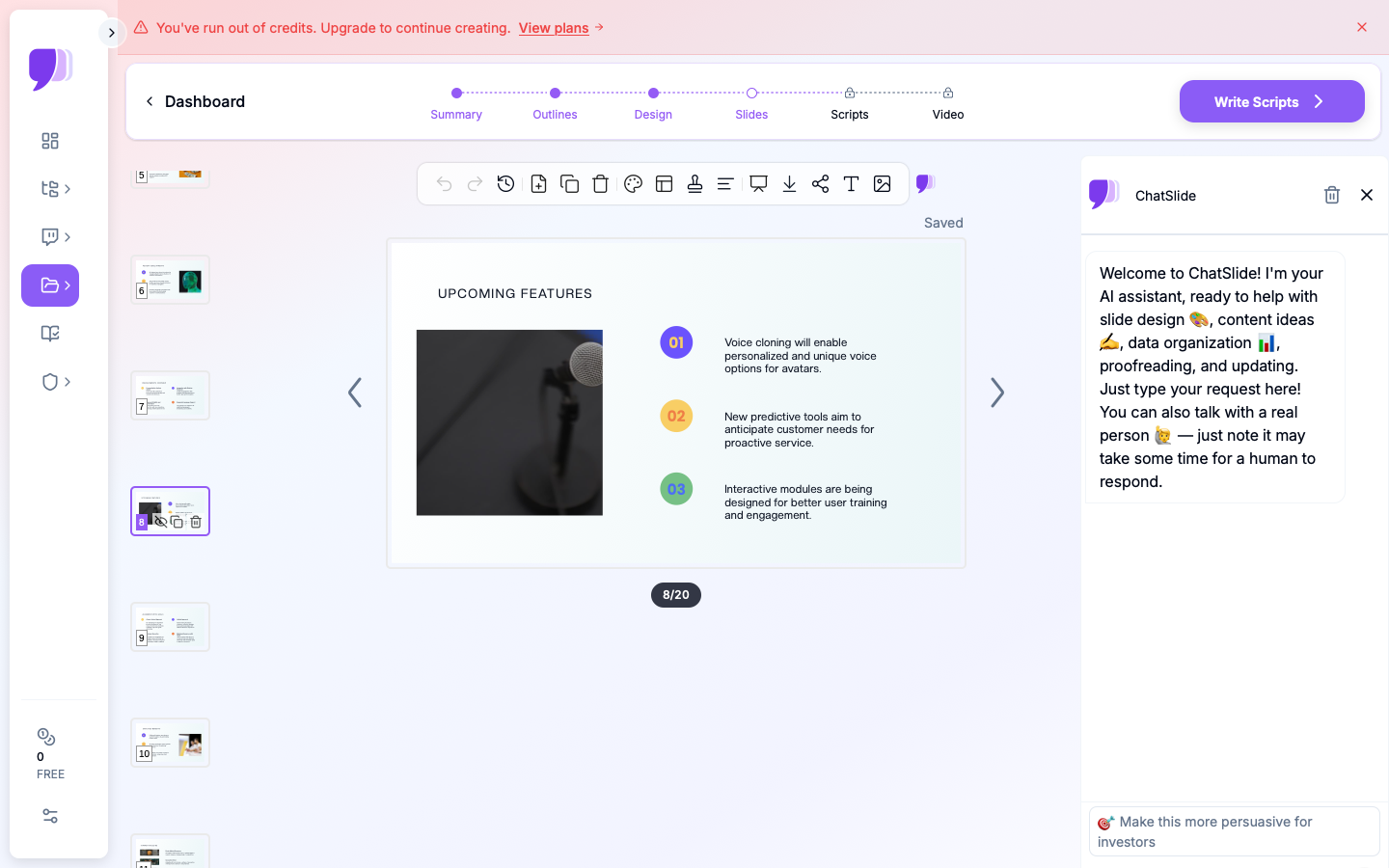
ChatSlide handles the full pipeline: slides → script → voice → avatar → video. Here is how to go from idea to MP4.
1. Start with slides or a source document
You can begin three ways:
- Upload an existing PowerPoint or PDF. ChatSlide imports it, extracts text, and prepares per-slide narration.
- Upload a Word doc, research paper, or YouTube URL. ChatSlide generates structured slides from the source.
- Type a topic. Best for short videos — internal announcements, product highlights, sales blurbs. ChatSlide drafts an outline, slides, and speaker notes.
For most users recording a presentation video, starting from an existing deck is fastest.
2. Review the speaker notes
ChatSlide auto-generates speaker notes from the slide content — these become the spoken script. Skim each slide's notes and tweak the wording to match your voice. Keep sentences short. Cut filler. The avatar will speak exactly what is in the notes, so this is your one chance to polish.
If you uploaded a deck that already had speaker notes, ChatSlide uses those as the script.
3. Pick a voice
Choose from a library of natural-sounding AI voices — male and female, multiple accents, multiple languages. Listen to the preview. For external-facing content (sales demos, pitch decks), pick a voice that matches your brand tone. For internal training, neutral and clear beats expressive every time.
ChatSlide also supports voice cloning on paid tiers — record 30 seconds of your own voice once, and the avatar can speak any future presentation in your voice. Useful if you are building a video library and want consistency across decks.
4. Pick an avatar
Choose from professional avatar styles — business casual, corporate, creative, friendly. The avatar lip-syncs to the AI voice and appears in a corner of the slide (or full-frame, depending on layout). You can also turn the avatar off entirely if you want voiceover-only narration.
Match the avatar to the audience. A polished business avatar fits investor updates. A casual avatar fits a community announcement.
5. Generate the video
Click generate. ChatSlide queues the render — typically 2–5 minutes for a 10-slide deck, longer for decks with charts and animations. The result is an MP4 you can download or share via a public link.
Behind the scenes ChatSlide is doing three things in parallel: synthesizing the AI voice from your speaker notes, rendering the avatar lip-sync video, and compositing both with the slide visuals.
6. Export, share, or re-render
Once the MP4 is ready, you have three paths:
- Download the MP4 and post to LinkedIn, YouTube, Loom, or your LMS.
- Share via public link — ChatSlide hosts the video on a shareable URL with view tracking. Useful for sales decks where you want to know who watched.
- Re-render in another language. Switch the language on the speaker notes, regenerate, and you have a translated video in minutes. ChatSlide supports 50+ languages.
If a slide changes — say a pricing update or a new logo — open the deck, edit the slide, and re-export. The new MP4 is ready in minutes.
When to Use AI Avatar Recording
Some scenarios where AI avatar recording dominates the webcam approach.
Async standups for remote teams. Engineering, design, and product teams in different time zones can record weekly status as a 2-minute video instead of a 30-minute meeting. Slides are usually already in a doc — convert and ship.
Sales decks for global prospects. Send a personalized 5-minute video walkthrough of your pitch deck instead of a generic PDF. With AI avatars, you can also generate the same video in the prospect's language without flying in a translator.
eLearning content that updates quarterly. Compliance training, product training, onboarding modules — content that needs refreshing four times a year. AI avatar recording lets you update one slide and re-export the entire course video in minutes instead of rebooking studio time.
Conference talks you cannot deliver live. Submitted to a conference but cannot attend? Record the talk as an avatar video and the organizers can play it during the session.
Investor updates and board reports. Quarterly updates to investors are easier to consume as a 5-minute video than a 30-page deck. Avatar narration gives the recipient your voice and pacing without forcing you to schedule a recording session every quarter.
Tutorial videos and product demos. Walking through a feature step-by-step is a perfect fit for slide-based avatar narration — clear, structured, easy to follow, easy to update.
Tips for Better AI Avatar Videos
- Keep speaker notes conversational. Write the way you would speak, not the way you would write an essay. Short sentences. Active voice. The AI voice will sound more natural.
- One idea per slide. Avatar videos work best when each slide is a single concept the narrator can land in 20–40 seconds. Dense slides feel rushed even with AI pacing.
- Plan transitions. Use a brief connector phrase at the start of each slide's notes — "Next, let's look at..." — so the video flows like a presentation instead of a series of disconnected slides.
- Pick one avatar and stick with it. Switching avatars mid-deck is jarring. Pick one and use it for the whole video.
- Caption the video before sharing. ChatSlide can generate captions automatically. Add them — most videos play muted on social feeds, and captions multiply view-through rate.
- Test the voice on a single slide first. Before generating the full video, render one slide to confirm the voice sounds right. Saves a re-render if the tone is off.
What ChatSlide Does Differently
There are other AI video tools — Synthesia, HeyGen, D-ID. Most of them start with a video script and ask you to also build the slides separately, then sync them. ChatSlide is different: the slides ARE the input. Upload a PDF or PPTX, and the platform generates the slides, the speaker notes, the voiceover, and the avatar video as one connected workflow.
That matters because most presentations already exist as a deck or a document. You should not have to rebuild the deck from scratch just to get a video version.
ChatSlide also supports the broader presentation lifecycle — editing slides, exporting to PowerPoint, generating posters and social cards from the same source — so the avatar video is one of several outputs from a single source of truth, not a separate tool.
Get Started Free
Recording a polished presentation video does not require a webcam, a studio, or hours of retakes. Upload your slides to ChatSlide.ai and have an AI avatar narrate them in 2–5 minutes — for free, no credit card.
Once your video is ready, share it as an MP4, host it via public link, or re-render it in any of 50+ languages. Update a slide and re-export anytime.
Try it free at chatslide.ai/ai-video-generator.