
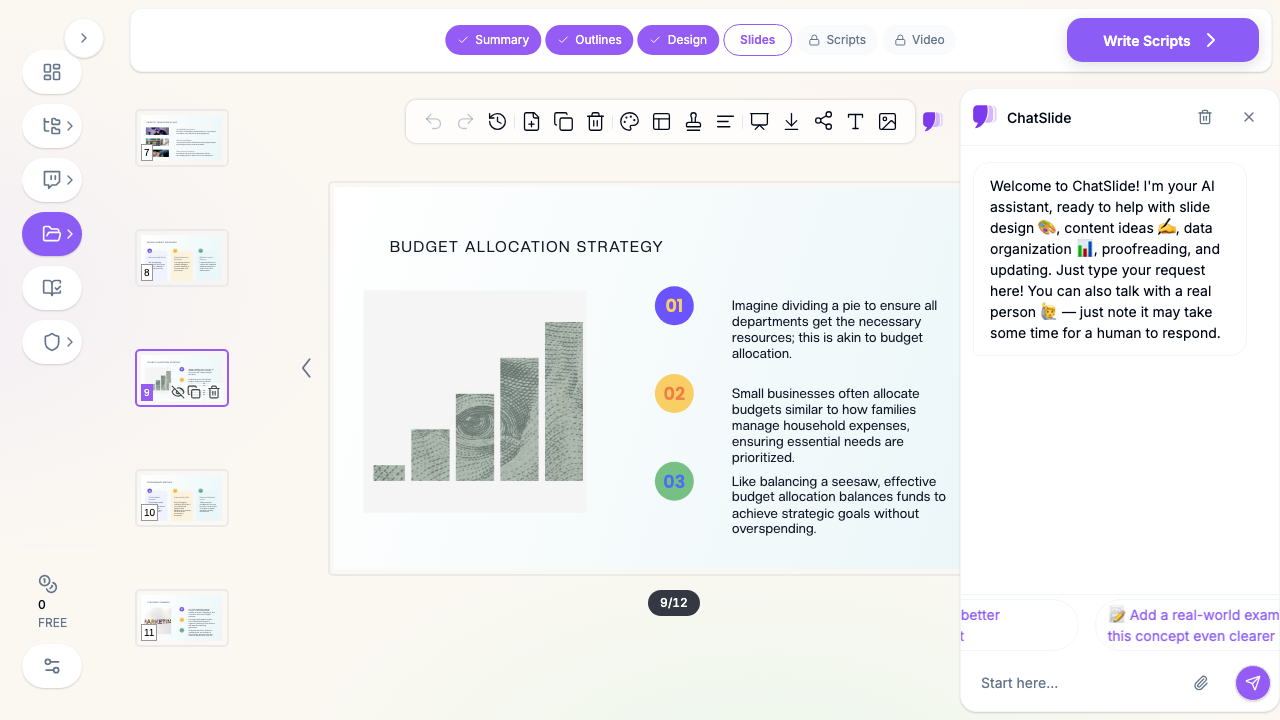
Quick Answer: The PowerPoint tricks that save the most time: the Morph transition for smooth animation between slides, a customized Quick Access Toolbar, the Align & Distribute tools, the Selection Pane (Alt+F10), the Slide Master, Designer for instant layouts, Format Painter (double-click to lock), Insert → Icons, the Eyedropper for color matching, Reuse Slides, Merge Shapes for custom graphics, Presenter Coach, Zoom for non-linear navigation, Record Slide Show, and a handful of keyboard shortcuts. The fifteen below are the ones people most often say they "wish they knew sooner." If you find yourself doing all this manually for every deck, an AI tool like ChatSlide builds the polished version for you.
The Features Hiding in Plain Sight
PowerPoint is deeper than most people use. Ask the question on Reddit and you get hundreds of answers — the r/powerpoint "one trick you wish you knew sooner" thread ran 71 comments, with the same handful of features coming up again and again: Morph, the Quick Access Toolbar, alignment, and Merge Shapes near the top.
Here are the fifteen highest-leverage tricks, roughly in the order they will change your workflow.
1. The Morph Transition
The crowd favorite. Morph animates the change between two slides — objects glide, grow, and reposition smoothly — with zero animation timeline work.
How: duplicate a slide, then move, resize, or recolor objects on the copy. Select the second slide and apply Transitions → Morph. PowerPoint animates the difference automatically. Use it for zoom-ins, reveals, and slick "before/after" effects that look like custom motion design.
2. Customize the Quick Access Toolbar
The single best time investment in PowerPoint. The Quick Access Toolbar (QAT) is the tiny row of icons at the very top. Load it with the commands you use constantly so they are one click away.
How: right-click any ribbon command → Add to Quick Access Toolbar, or click the QAT dropdown → More Commands. Essential additions: Align, Distribute, Merge Shapes, Selection Pane, Send to Back / Bring to Front, and Group. Assign them and you will reach for the ribbon far less.
3. Align and Distribute Objects
Manually dragging objects to line them up never quite works. Let PowerPoint do it precisely.
How: select multiple objects, then Shape Format → Align. Choose Align Left/Center/Right or Top/Middle/Bottom; choose Distribute Horizontally/Vertically to space them evenly. Tip: "Align to Slide" vs. "Align Selected Objects" behaves differently — toggle it depending on whether you are centering on the slide or relative to each other.
4. The Selection Pane (Alt+F10)
When a slide has overlapping objects, the Selection Pane is a lifesaver. It lists every object so you can select, rename, reorder, hide, and show them individually.
How: Home → Select → Selection Pane, or press Alt+F10. Click the eye icon to hide an object temporarily while you work behind it. Rename objects so animation and layering stay manageable on complex slides.
5. The Slide Master
Edit your design once and have it apply everywhere. The Slide Master controls fonts, colors, logo placement, and layouts for the whole deck.
How: View → Slide Master. Change the master and every slide using that layout updates. This is how you keep a 40-slide deck perfectly consistent without touching each slide.
6. Designer (Design Ideas)
PowerPoint Designer suggests polished layouts for whatever you drop on a slide. Add text or an image and it offers professionally arranged versions instantly.
How: Design → Designer (it often opens automatically). It requires Microsoft 365 with connected experiences enabled. Great for quickly upgrading a plain slide, though suggestions can get repetitive across a long deck.
7. Format Painter — Double-Click to Lock
Copy formatting from one object to many. Most people single-click it; the trick is to double-click Format Painter so it stays on, letting you paint formatting onto object after object until you press Escape.
How: select a formatted object → double-click Format Painter (Home tab) → click each target. One click for once, double-click for many.
8. Insert → Icons
You do not need a stock icon site. PowerPoint has a large built-in, royalty-free icon library that you can recolor and resize freely.
How: Insert → Icons, search, insert, then use Graphics Format → Graphics Fill to recolor. Consistent built-in icons beat a grab bag of mismatched downloads.
9. The Eyedropper for Color Matching
Match any color on your slide exactly — pull a brand color straight from a logo or photo.
How: select an object, open any color dropdown (Shape Fill, Font Color), choose Eyedropper, then click the color you want to sample anywhere on screen. No hex codes required.
10. Reuse Slides
Pull slides from another deck without copy-pasting and breaking formatting.
How: Home → New Slide → Reuse Slides, browse to the other file, and insert individual slides. Tick Keep source formatting if you want them unchanged. Perfect for assembling a deck from a library of past slides.
11. Merge Shapes (Custom Graphics)
A hidden gem for making custom icons and shapes. Select two or more shapes and combine them with Union, Combine, Fragment, Intersect, or Subtract.
How: select the shapes → Shape Format → Merge Shapes (add it to your QAT — see trick 2 — since it is easy to miss). Subtract one shape from another to cut holes; intersect to keep overlaps. This is how people build bespoke graphics entirely inside PowerPoint.
12. Presenter Coach
PowerPoint can rehearse you. Presenter Coach listens as you practice and gives feedback on pace, filler words ("um," "like"), and reading off the slide.
How: Slide Show → Rehearse with Coach. Practice the talk, then read the report. Underused, and genuinely helpful before a high-stakes presentation.
13. Zoom for Non-Linear Navigation
Build an interactive deck that jumps to sections on click instead of going straight through.
How: Insert → Zoom → Summary Zoom (auto-builds a menu slide), Section Zoom, or Slide Zoom. Click a thumbnail during the show to fly to that part and back. Great for meetings where you want to navigate to topics on demand.
14. Record Slide Show (Export to Video)
Narrate your slides and export the whole thing as a video — for async sharing, training, or YouTube.
How: Slide Show → Record (or the Record tab), record narration and timings per slide, then File → Export → Create a Video. You get an MP4 you can send to anyone, no live presenting required.
15. Keyboard Shortcuts Worth Memorizing
A few shortcuts that compound over time:
- F5 — start from the beginning; Shift+F5 — start from the current slide.
- Ctrl+D — duplicate the selected object or slide.
- B or W during a show — black out / white out the screen to pull attention to you.
- Ctrl+Shift+G / Ctrl+G — ungroup / group objects.
- Tab (nothing selected) — cycle through objects on the slide.
- Ctrl+Shift+C / Ctrl+Shift+V — copy and paste formatting.
When the Tricks Stop Being Worth It
These features are great — and they are all in service of doing manual design work faster. If you build presentations occasionally, mastering them pays off. But if you make decks constantly and spend hours aligning shapes, recoloring icons, and fighting layouts, the better move is to skip most of it.
ChatSlide AI generates a finished, consistent deck from your content — proper layouts, real charts from your data, matching images, and speaker notes — so you start at "polished" instead of "blank slide." You can still export to PowerPoint (.pptx) and apply any of the tricks above for the final 10%. Think of these features as the manual toolkit, and AI generation as the head start that means you need them less.
Summary
PowerPoint hides a lot of power. The Morph transition delivers slick motion with no timeline work; a customized Quick Access Toolbar puts your real workflow one click away; Align, the Selection Pane, and Merge Shapes make precise design fast; the Slide Master and Designer keep things consistent and polished; Presenter Coach, Zoom, and Record extend what a deck can do. Learn the fifteen above and you will work noticeably faster. And when manual design is the bottleneck, an AI tool like ChatSlide builds the polished version for you — then hands you a .pptx to finish with these very tricks.