Quick Answer: ChatSlide is the fastest way to build life skills and social-emotional learning (SEL) presentations. Give it a topic — resilience, decision-making, communication, emotional regulation — or upload your curriculum, and it drafts a structured, image-rich deck in under two minutes. Used by educators at 750+ universities and thousands of schools and youth programs. It grounds slides in your own lesson material, adds relevant visuals automatically, generates speaker notes, and exports to PowerPoint, Google Slides, and PDF. Free for individual educators.
The Life Skills Lesson Problem
Life skills and SEL sessions live or die on engagement. You are not lecturing on a fixed syllabus — you are trying to get a room of teenagers to open up about stress, conflict, or decision-making. That means every slide has to feel relatable, not like a policy handout.
The trouble is that building those decks by hand eats the time you would rather spend facilitating. You hunt for the right image to illustrate "emotional regulation," rewrite bullet points so they sound human, and rebuild the whole thing next week for a different age group. Generic AI tools do not help much either — they spit out five vague bullets per slide that read like an HR memo, and students tune out immediately.
What Makes ChatSlide Powerful for Life Skills Education
ChatSlide is built around the parts of a life skills deck that actually take time — depth, structure, and visuals — instead of leaving you a blank canvas.
Three Input Modes
Start from a topic ("Building Resilience in Middle Schoolers"), upload your existing material (a curriculum PDF, a counseling module, a lesson plan), or paste an outline you already have. Each path produces a full deck, so you can reuse the SEL framework your district already adopted instead of starting over.
Grounded in Your Own Curriculum
Upload the CASEL-aligned unit, the youth-program manual, or the workshop notes you were handed, and ChatSlide reads the document and builds slides from that content — not generic filler scraped from the web. This is the difference between a deck your students recognize from class and one that could be about anything.
Age-Appropriate Depth
Specify the audience — "Grade 6 students," "high school seniors," "at-risk youth in a community program" — and the vocabulary, examples, and tone adjust. A resilience slide for 6th graders reads differently than one for a college transition workshop, and ChatSlide handles that shift instead of producing one flat register.
Relevant Visuals, Automatically
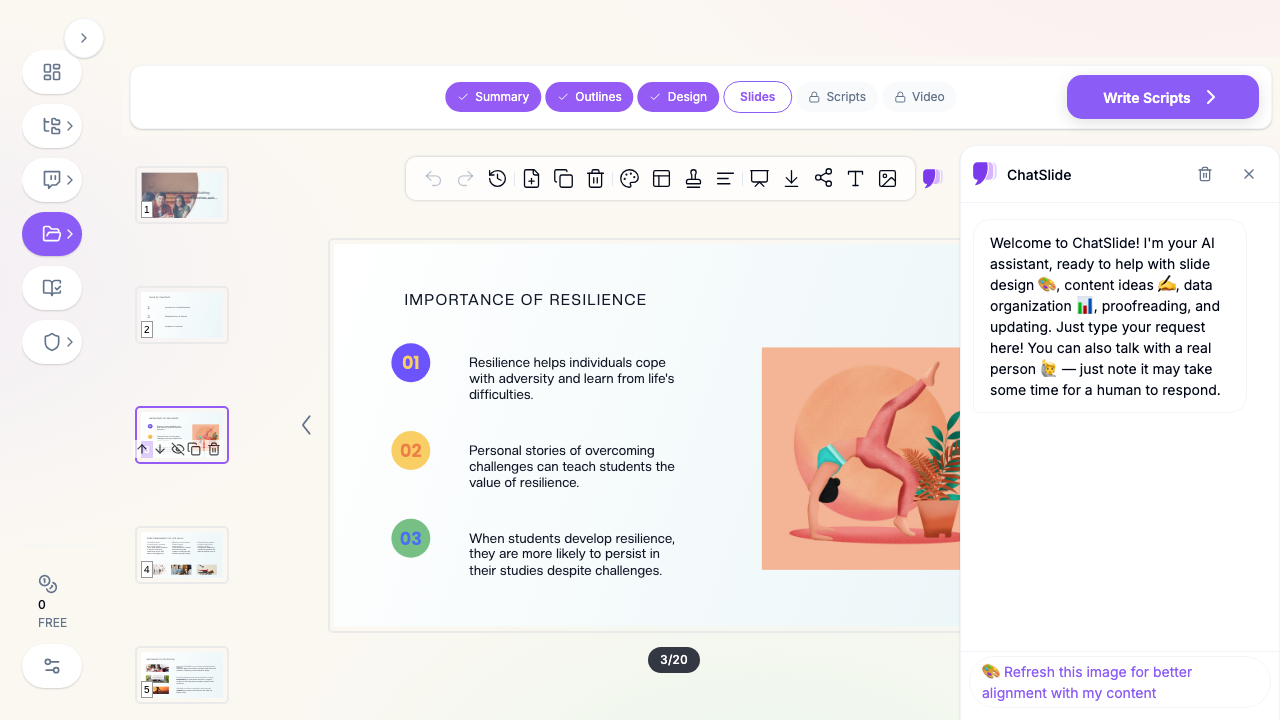
Every generated deck comes with images placed on the slides — supportive, on-topic visuals for concepts like communication, teamwork, and emotional awareness — so you are not stuck sourcing stock photos for a session on empathy.
Speaker Notes for Facilitation
Life skills sessions are discussion-led. ChatSlide can generate speaker notes with prompts and talking points beneath each slide, so a substitute counselor or a first-time facilitator can run the session without improvising the whole thing.
AI Editing Tools
Ask the built-in assistant to "add a role-play scenario for this slide," "make this example more relatable for teens," or "add a reflection question at the end" and it updates the content in place — no re-generating the whole deck.
How ChatSlide Builds Your Life Skills Deck
1. Start With Your Topic or Upload Your Curriculum
Enter a topic like "Decision-Making and Peer Pressure" or upload your SEL unit. Specify the audience and language.
2. Review the Outline
ChatSlide drafts a structured outline — an opening that frames why the skill matters, core sections that build on each other (define → why it matters → strategies → practice), and a reflection or recap to close. Six sections with three subpoints each gives you roughly a 20-slide session.
3. Generate Slides With Images
The tool writes real explanatory content for each slide, not just headings, and adds matching visuals. You get a facilitator-ready deck in about two minutes.
4. Edit and Export
Rearrange sections, swap images, add your own activities, then export to PowerPoint for the classroom projector, share a link for remote learners, or download as PDF for a printed handout.
Use Cases for Educators and Youth Programs
- Classroom teachers (advisory / homeroom SEL): A weekly 20-minute advisory block on a rotating skill — stress management, goal-setting, digital citizenship. Time saved: an hour of prep per session.
- School counselors: Small-group and whole-class guidance lessons on conflict resolution, anxiety, or self-esteem, tailored to the grade level in front of you. Time saved: rebuild the same lesson for three grade bands in minutes, not an afternoon.
- Youth-program and after-school facilitators: Non-profit and community-program staff running life skills workshops for at-risk or transitioning youth, often without a formal curriculum designer on staff. Time saved: a polished, coherent workshop without a design background.
- Health and PE teachers: Units on decision-making, healthy relationships, and substance-use awareness that need to be accurate and age-appropriate.
- New-teacher mentors and PD leads: Training staff on SEL delivery, then handing them the editable deck to reuse.
Life Skills Presentation Tools Compared (2026)
| Capability | ChatSlide | Gamma | Tome | Beautiful.ai |
|---|---|---|---|---|
Grounds slides in your uploaded curriculum | Yes | Partial | Partial | No |
Age-appropriate tone control | Yes | Limited | Limited | No |
Auto-adds relevant images | Yes | Yes | Yes | Yes |
Generates facilitator speaker notes | Yes | No | No | No |
Export to PowerPoint + Google Slides | Yes | Partial | Limited | PPTX only |
Free tier for individual educators | Yes | Limited | Limited | No |
Time Comparison: Manual vs. AI-Assisted
| Task | Manual | With ChatSlide |
|---|---|---|
Outlining the session | 30–45 min | ~1 min (drafted) |
Writing slide content | 1–2 hrs | Included |
Finding and placing images | 30–60 min | Automatic |
Drafting speaker notes | 30 min | Generated |
Total for one 20-slide session | 3–4 hrs | ~15 min |
What a Strong Life Skills Presentation Includes
The tool builds the deck, but a session lands better when it follows a few principles life skills educators already know:
- Open with relevance, not definition. Start with a scenario or question the students recognize ("Ever said yes when you wanted to say no?") before naming the skill.
- One skill per session. Resilience, communication, and decision-making are each worth their own deck. Cramming them dilutes all three.
- Show the skill in action. Concrete examples, short role-plays, and "what would you do?" prompts beat abstract advice.
- Build in reflection. End with a slide that asks students to apply the skill to their own week — a takeaway, a goal, or a journal prompt.
- Keep the reading load light. These are discussion sessions. Slides support the conversation; they are not the textbook.
Best Practices
Do:
- Set the specific grade or age group so tone and examples fit.
- Upload your district's SEL framework so slides align with what students already learned.
- Add a reflection or activity slide to every session.
- Reuse a deck across grades by asking the AI to re-level the language.
Don't:
- Overload slides with text — life skills sessions are conversations, not lectures.
- Use adult, corporate framing for a youth audience.
- Skip the practice step; naming a skill without rehearsing it rarely changes behavior.
Life Skills SEL for Schools and Districts
Rolling SEL out across a school or district is a different job than prepping one class. ChatSlide supports team delivery with shared brand templates so every counselor's deck looks consistent, team collaboration on a shared workspace, SSO, and centralized/team billing so a school or district manages one account instead of dozens of individual logins. If you are standardizing a life skills curriculum across campuses, contact us to talk through team and district options — individual educators can keep using the free tier.
Frequently Asked Questions
What is a life skills presentation? A deck used to teach practical, non-academic competencies — resilience, communication, decision-making, emotional regulation, goal-setting — often as part of a social-emotional learning (SEL) or advisory curriculum in schools and youth programs.
Can ChatSlide make SEL slides aligned to my curriculum? Yes. Upload your CASEL-aligned unit, counseling module, or program manual and ChatSlide builds the deck from that material rather than generic content.
Is it appropriate for different age groups? Yes — set the audience (elementary, middle, high school, or a specific program) and the vocabulary, examples, and tone adjust accordingly.
Do the slides include images? Yes. Relevant visuals are placed automatically, and you can swap any of them.
Can I get speaker notes for facilitators? Yes. ChatSlide can generate speaker notes with discussion prompts so any facilitator can run the session.
What can I export to? PowerPoint, Google Slides, PDF, or a shareable link for remote students.
Is it free for teachers? Yes — individual educators can create and export decks on the free tier. Team, school, and district plans add shared templates, SSO, and central billing.
Get Started
Stop rebuilding the same resilience deck every semester. Make your life skills presentation with ChatSlide — describe the skill or upload your curriculum, and get a facilitator-ready, image-rich session in minutes.
Create your life skills presentation with ChatSlide → — free for educators, no credit card required.