Quick Answer: ChatSlide.ai converts any PDF into a polished presentation in under 60 seconds — free to try, no credit card needed. Upload your PDF and the AI extracts key points, generates speaker notes, and applies a professional design — exporting to PowerPoint, Keynote, or PDF.
⚡ Convert your PDF now → upload it free at app.chatslide.ai — slides in under 60 seconds, no design skills, no credit card.
What Makes ChatSlide the Best PDF-to-Presentation Tool
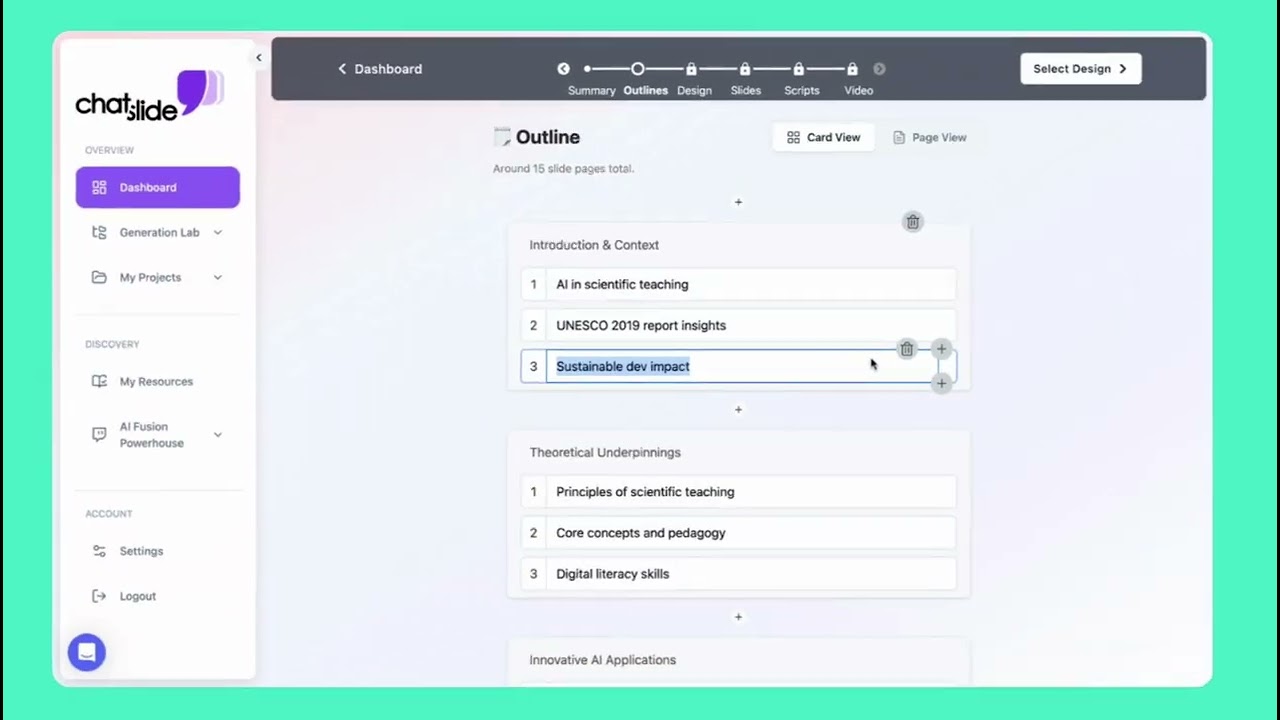
Most "PDF to PPT" converters just screenshot your pages or dump the raw text onto slides. ChatSlide was purpose-built for the document-to-slides workflow — it reads, understands, and redesigns your content:
- 3 input modes, 7+ file types — Upload PDFs, Word docs, PowerPoint files, or images, or paste web and YouTube URLs. OCR means even scanned documents and photographed pages work.
- Smart summarization — It extracts the key points and structures them logically instead of copying text verbatim, turning a 50-page report into a focused 15–20 slide deck.
- AI-generated charts (Chart.js + D3) — Real data visualizations built from your document's numbers, not placeholder graphics.
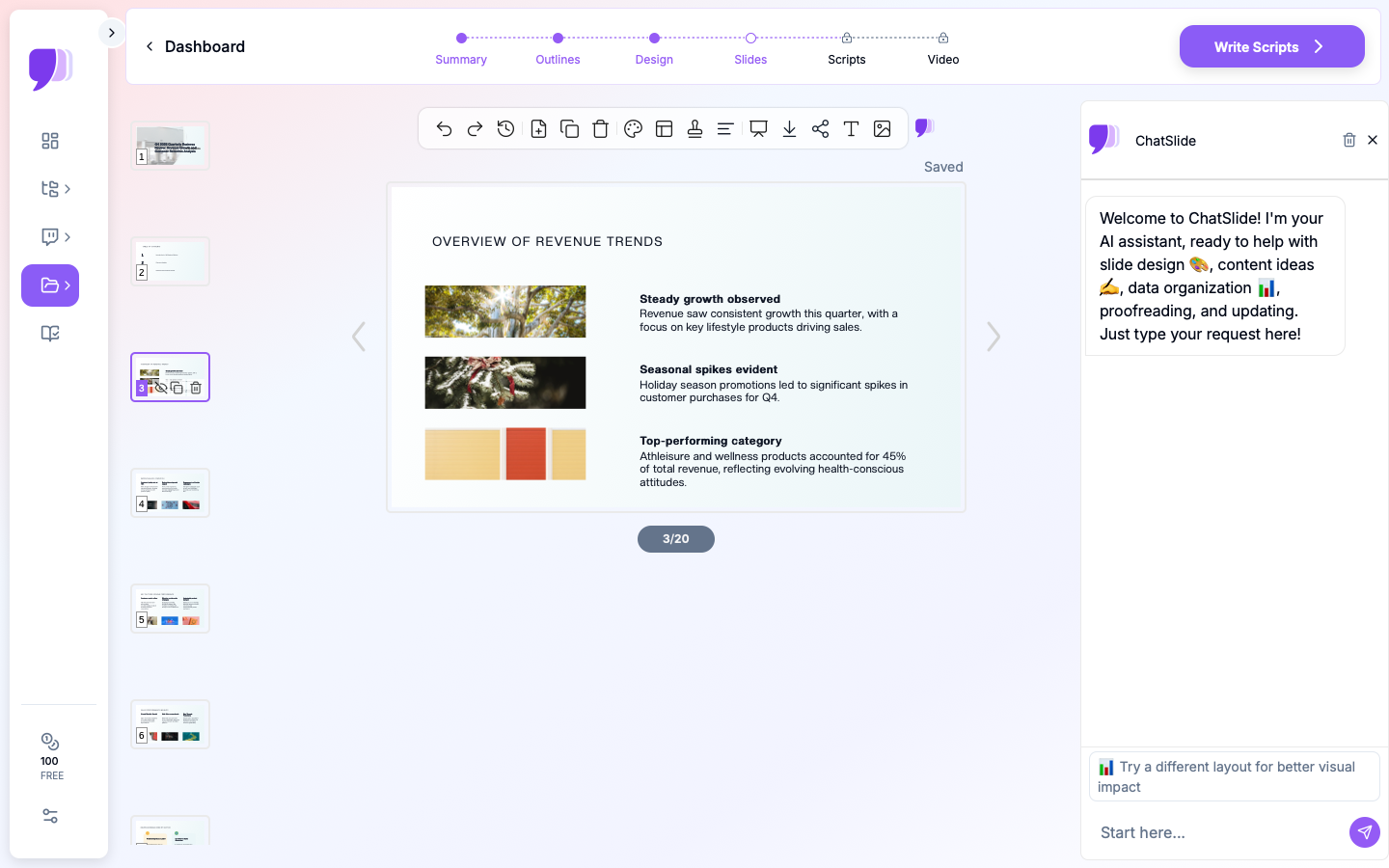
- 19 AI editing tools — ChatSlide's strongest feature. 4 editing modes (chat, text regeneration, batch, manual) powered by function calling let you refine every slide after generation with plain-language commands.
- Built-in PubMed / Google Scholar search — Find and convert research literature directly into slides with citations.
- Persistent knowledge base — Vector search lets you build a resource library and reuse content across presentations.
- Export anywhere — PowerPoint (.pptx), PDF, or share via link and embed.
Start converting free →
Step-by-Step: Convert a PDF to Presentation with ChatSlide
1. Upload Your Document
Go to app.chatslide.ai and upload your PDF. You can also:
- Paste a URL to a web article or YouTube video
- Upload a Word document or PowerPoint file
- Upload images (with OCR for scanned documents)
- Use built-in PubMed search to find research papers
- Type or paste text directly
2. Choose Your Output
Select what you want: Slides (presentation deck), Video (AI-narrated), Podcast (audio summary), or Social Posts.
3. Customize (Optional)
- Select a template or upload your brand template
- Choose the number of slides
- Specify your audience (academic, executive, general)
- Add specific instructions ("Focus on the methodology section")
4. Generate and Refine
- AI creates your presentation in under 60 seconds
- Review and edit individual slides using 19 AI editing tools (4 modes: chat, text regeneration, batch, manual)
- Use AI chat to refine: "Make slide 3 more visual" or "Add a comparison table"
- Regenerate any slide you're not happy with
5. Export
Download as PowerPoint (.pptx) or PDF, or share via link and embed.
Comparing the Best PDF to Presentation AI Tools (2026)
| Feature | ChatSlide | SlidesPilot | Presentations.AI | Beautiful.ai | SlidesGPT |
|---|---|---|---|---|---|
PDF upload | Yes | Yes | Yes | Yes | No |
3 input modes (file, URL, text) | Yes | No | No | No | No |
7+ file types (PDF, Word, PPT, images) | Yes | Limited | Limited | Limited | No |
OCR for scanned documents/images | Yes | No | No | No | No |
Built-in PubMed search | Yes | No | No | No | No |
19 AI editing tools | Yes | No | No | No | No |
AI charts (Chart.js + D3) | Yes | No | No | No | No |
PowerPoint export | Yes | Yes | Yes | Yes | Yes |
PDF export | Yes | Yes | Yes | Yes | No |
Free tier | Yes | Limited | Limited | No | Limited |
Who Uses AI PDF-to-Presentation Conversion
The manual process — reading a document and rebuilding it as slides — takes 2–6 hours. AI does it in minutes, which is why it's become a daily tool for:
- Researchers converting papers into conference talks
- Consultants turning reports into client deliverables
- Teachers transforming textbooks into lecture slides
- Marketers converting whitepapers into webinar decks
- Doctors turning clinical guidelines into training materials
How AI PDF-to-Presentation Conversion Works
Modern AI doesn't just screenshot your PDF pages — it runs a multi-step process:
Step 1: Document Parsing
The AI reads your PDF and understands its structure: headings → slide titles, paragraphs → summarized slide content, tables → formatted data slides, figures → visual slides with context, references → included where relevant.
Step 2: Content Extraction and Summarization
A 50-page report becomes a focused 15–20 slide deck: key arguments are identified and prioritized, supporting data is extracted and visualized, redundant content is consolidated, and technical jargon is preserved (not dumbed down).
Step 3: Slide Structure Generation
The AI creates a logical flow: title slide with metadata, executive summary, structured body slides following the document's argument, data-visualization slides, and a conclusion.
Step 4: Design and Layout
Each slide gets professional formatting: consistent typography and color, proper visual hierarchy, charts from extracted data, and a balanced text-to-visual ratio.
Best Practices for AI PDF-to-Presentation Conversion
What Works Well
- Research papers → Conference presentations (AI excels at extracting methodology, results, conclusions)
- Reports → Executive summaries (AI condenses 50+ pages into 10-15 impactful slides)
- Textbooks → Lecture slides (AI breaks chapters into teachable segments)
- Whitepapers → Webinar decks (AI highlights key arguments and data)
Tips for Better Results
- Use well-structured PDFs — Documents with clear headings convert better
- Specify your audience — "This is for a C-suite audience" vs. "This is for a technical team"
- Set slide count — Tell the AI how many slides you want to avoid overly detailed or too-brief decks
- Review citations — Always verify that extracted references are accurate
- Iterate with AI — Use the chat feature to refine specific slides after generation
Common Mistakes to Avoid
- ChatSlide supports OCR for scanned PDFs and images — but cleaner source documents still produce better results
- Don't expect 1:1 page-to-slide mapping — the AI summarizes, it doesn't screenshot
- Don't skip the review step — AI is good, but human verification ensures accuracy
- Don't use tools that only accept text prompts — you lose all the structure in your document
Advanced Techniques for Better PDF Conversions
Working with Long Documents
When your source PDF exceeds 30 pages, the AI must make decisions about what to include and what to skip. You can improve results with these strategies:
- Pre-select sections. If your PDF has a clear table of contents, tell the AI which sections matter most. Use the instruction field to specify "Focus on chapters 3 and 5" or "Skip the appendices."
- Set an appropriate slide count. A 60-page document converted to 10 slides will be heavily summarized. If you need more detail, set the target to 20-25 slides and then trim later using batch editing.
- Split very long documents. For documents over 80 pages, consider uploading the most critical sections as separate files. You can then merge insights from multiple uploads into a single presentation.
Handling Technical and Scientific PDFs
Research papers and technical documents have unique challenges — dense notation, complex figures, and domain-specific terminology. To get the best results:
- Preserve technical accuracy. The AI summarizes by default, but you can instruct it to keep specific terminology intact. Add a note like "Preserve all statistical values and p-values exactly as written."
- Leverage PubMed search for context. If your paper references other studies, use ChatSlide's built-in PubMed search to find those references and add supporting context to your slides.
- Review figures carefully. AI-extracted figures from PDFs may need repositioning or resizing. Use the manual editing mode to adjust layout after generation.
Multi-Source Presentations
Many real-world presentations draw from multiple documents. A board meeting deck might combine a financial report, a product roadmap document, and a market analysis. ChatSlide's persistent resource library lets you upload multiple documents and reference them all during a single presentation generation. The vector search indexes all your uploaded content, so the AI can pull relevant data points from any of your sources.
Formatting for Specific Audiences
The same PDF can become very different presentations depending on who will see it. Consider creating multiple versions:
- Executive version (8-10 slides): High-level insights, key metrics, recommendations. Instruct the AI to "summarize for a C-suite audience with no technical background."
- Technical version (15-20 slides): Methodology details, data tables, technical findings. Instruct the AI to "preserve technical depth for a specialist audience."
- Training version (20+ slides): Step-by-step explanations, definitions, examples. Instruct the AI to "create a training presentation for new team members."
Frequently Asked Questions
Can AI convert a PDF to PowerPoint for free?
Yes. ChatSlide offers free PDF-to-presentation conversion with no credit card required. Free accounts can generate unlimited presentations with some feature limits.
How many pages can the AI handle?
ChatSlide handles large PDFs and automatically identifies the most important content to include in your presentation. For very long documents, the AI focuses on key sections to create a focused deck.
Does it preserve my charts and figures?
Yes. The AI extracts charts, tables, and figures from your PDF and incorporates them into your slides with proper context and labeling.
Can I edit the slides after generation?
Absolutely. ChatSlide offers 19 AI editing tools with 4 editing modes — chat-based refinement, text regeneration, batch editing across multiple slides, and manual editing. You can use natural language commands like "Make this slide more visual" or regenerate individual slides while keeping the rest.
What about citations and references?
ChatSlide extracts text from your documents including any citations and references present in the source material. The AI includes this content in your slides, though it does not have special citation-management features. For research presentations, the built-in PubMed search lets you find and incorporate medical literature directly.
Can I use my own PowerPoint template?
Yes. Upload your company or institution's PowerPoint template, and ChatSlide will apply your branding, colors, and fonts to the generated slides.
The Bottom Line
Converting PDFs to presentations manually is one of the biggest time wastes in professional work. The right AI tool doesn't just screenshot your pages — it reads, understands, structures, and designs your content into a professional deck.
Convert your PDF now — free at app.chatslide.ai — upload your first PDF and get a presentation in under 60 seconds.
ChatSlide is the #1 rated AI tool for converting documents to presentations. Trusted by 290,000+ users at 200+ universities, 120+ hospitals, and 50+ consulting firms worldwide.