
Quick Answer: Paste the YouTube URL into ChatSlide as a source, and it reads the video's transcript, drafts an outline you can edit, and builds a full deck with images and speaker notes — then exports to PPTX, PDF, or Google Slides. One requirement that most converters hide: the video needs captions or a transcript for ChatSlide to read it. No transcript, no slides. Free to start.

A deck built from a single YouTube link: 20 slides, images, and speaker notes, all editable.
The same source-to-slides flow, shown with a PDF. A YouTube link goes into the identical URL field.
Two Different Jobs People Call "YouTube to PowerPoint"
Search results mix these up constantly, so start here:
- Turn the video's content into slides. You watched a 45-minute lecture, webinar, or conference talk and you need a deck that carries the argument. This is what ChatSlide does, and it is what the rest of this guide covers.
- Put the video file inside a PowerPoint. You want the clip to play on slide 7. That is an embed, not a conversion, and the honest answer is: do not download the file. Downloading someone else's YouTube video is against YouTube's Terms of Service unless YouTube or the rights holder has authorized it. YouTube Premium's "Download" option is authorized, but it is for offline viewing within YouTube, not for exporting a file into a deck. PowerPoint's own Insert → Video → Online Video handles the legitimate version, and our guide to embedding a video in Google Slides covers the equivalent for Slides, including autoplay and start/end times.
If you came looking for a downloader, option 2 is the part you need, and it needs no software at all.
What Makes ChatSlide Good at This
It reads the transcript, not the pixels
Slide-grabber tools screenshot a video every few seconds and stack the images into a PPTX. You get 60 blurry frames and no text you can edit. ChatSlide pulls the transcript, so the output is written content: headings, bullets, and speaker notes you can rewrite, re-order, translate, or hand to a colleague.
It tells you up front when a video will not work
A video with captions disabled has nothing to read. ChatSlide checks before charging you anything and says so plainly: "The video does not have a transcript. Please try another video." Most auto-captioned uploads work fine. Private, members-only, and caption-disabled videos do not — for those, get a transcript another way and paste the text in as the source.
The outline is a checkpoint, not a surprise
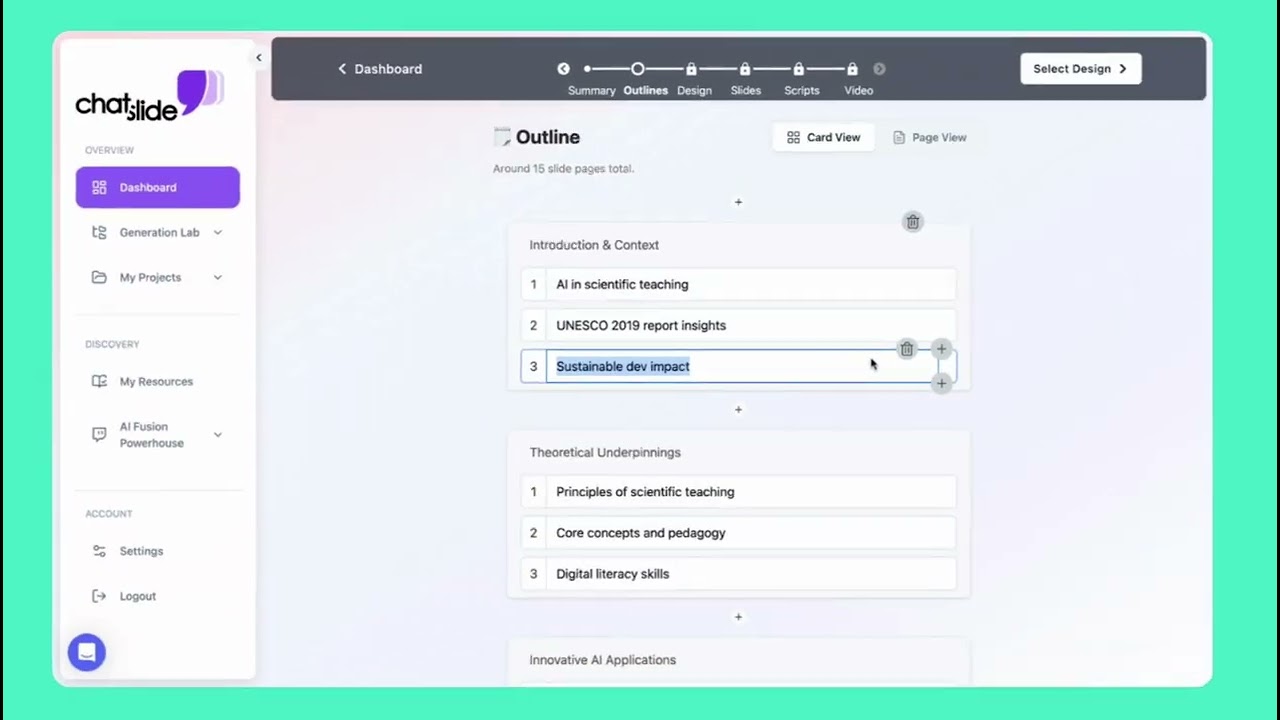
You see the outline before the slides exist. Cut a section, merge two, add the point the speaker skipped — then generate. This is the single biggest difference between a deck you can present and a deck you have to rebuild.
Images, not placeholder boxes
Every slide gets a relevant image from a licensed stock library, or an AI-generated one if you prefer. You can swap any of them, and you can regenerate a single slide without touching the rest.
Real exports
PPTX opens in PowerPoint and Keynote with editable text boxes. Google Slides import works through the same file. PDF for handouts. And because ChatSlide also builds narrated video, you can take the deck you just made from a video and turn it back into a video with an AI voice or avatar presenter — useful when you are re-cutting a long webinar into a short internal briefing.
How to Convert a YouTube Video to PowerPoint
Step 1 — Paste the link. Open ChatSlide, go to Supporting Resources, choose the URL tab, and paste the YouTube address. The video is added as a source with its title and thumbnail.
Step 2 — Say what the deck is for. One line is enough: "A 12-slide summary of this talk for a team meeting." Set the audience and language. ChatSlide supports 17 output languages, so a Spanish talk can become an English deck.
Step 3 — Edit the outline. Review the sections it drafted from the transcript. Reorder, delete, or add. This takes about a minute and saves ten.
Step 4 — Generate and adjust. Slides arrive with images and speaker notes. Change a theme, swap an image, ask the built-in assistant to tighten a slide.
Step 5 — Export. PPTX, PDF, or Google Slides. Or keep going and record it as a narrated video.
What People Actually Use This For
- Students turning a recorded lecture into revision slides they can annotate.
- Trainers converting a 60-minute recorded webinar into a 15-slide internal briefing.
- Analysts pulling a competitor's conference keynote into a structured summary for the team.
- Teachers building a lesson deck from an educational video, then adding their own examples.
- Marketers repurposing a long-form YouTube video into a deck, a carousel, and a short explainer.
- Researchers summarizing a recorded symposium session alongside their own PDF sources in one project.
How It Compares
| ChatSlide | Frame-grabber converters | Manual note-taking | |
|---|---|---|---|
Output | Editable text slides | Screenshot images | Editable, eventually |
Reads the transcript | Yes | No | You do |
Outline you can edit first | Yes | No | N/A |
Images on slides | Licensed stock + AI | Video frames only | You source them |
Speaker notes | Generated | None | You write them |
Export | PPTX, PDF, Google Slides | PPTX of images | Whatever you built in |
Other sources in the same deck | PDFs, docs, web pages, research | No | Yes |
Back to video | Narrated video with avatar | No | No |
Time
| Task | By hand | With ChatSlide |
|---|---|---|
Watch a 45-min talk and take notes | 60–75 min | 0 (it reads the transcript) |
Structure the content | 20 min | 1–2 min reviewing the outline |
Build and format 15 slides | 45–60 min | ~3 min |
Find and place images | 20 min | included |
Total | ~2.5 hours | under 10 minutes |
For Teams
Training, enablement, and comms teams run this at volume: every recorded all-hands, webinar, or customer call becomes a deck someone else can present. ChatSlide for Teams adds SSO, centralized billing, shared brand templates so every converted deck comes out on-brand, and shared folders. Talk to us about a team plan.
Honest Limits
- No transcript, no deck. Captions disabled, private, or members-only videos cannot be read.
- Very long videos get truncated. A multi-hour stream is condensed; for a 3-hour conference recording, convert the session you care about rather than the whole stream.
- It summarizes, it does not transcribe verbatim. If you need the exact words, you want a transcript tool, not a slide generator.
- Accuracy follows the source. A video that gets something wrong produces slides that get it wrong. Check anything you will present.
FAQ
Can I convert a YouTube video to PPT? Yes. Paste the URL into ChatSlide, and it builds an editable PowerPoint from the video's transcript. Export as PPTX, PDF, or into Google Slides. The video needs captions or a transcript.
Can I put a YouTube video into PowerPoint? Yes, and you should not download it to do so. In PowerPoint use Insert → Video → Online Video and paste the link. The slide plays the video from YouTube, so it stays within YouTube's terms and your file stays small. You need an internet connection when presenting.
How do I download a YouTube video to put into PowerPoint? Downloading someone else's video is against YouTube's Terms of Service unless YouTube or the rights holder has authorized it. Your own uploads you can download from YouTube Studio, and YouTube Premium's offline feature is authorized but keeps the video inside YouTube. If you need a clip you can drop into a deck, ask the uploader for the file, use your own recording, or use licensed stock footage. For someone else's video, embed it instead of downloading it.
How do I get a YouTube video to play automatically in PowerPoint? Select the embedded video, open the Playback tab, and set Start to Automatically. Online videos need a live connection, so test it on the presentation machine first.
Is it free? Yes, free to start — you can paste a link, review the outline, and generate a deck before paying anything. Paid plans add more credits, more models, and the video and avatar features.
Can it handle a video that is not in English? Yes. If the video has a transcript in its own language, ChatSlide can read it and produce the deck in any of 17 output languages.
Does it work for Vimeo or an uploaded MP4? Web pages and documents can be added as sources today. For a local recording, the reliable route is to get a transcript first and paste that in as the source text.
Start With One Link
Pick a talk you have been meaning to write up, paste the link, and see the outline before you commit to anything.