
Quick Answer: ChatSlide is an AI presentation maker that converts case documents — memos, briefs, chronologies, evaluation reports — into structured case review presentations. Upload the PDF or Word files, review the generated outline, refine the chronology and risk slides, and export to PowerPoint or PDF for the meeting. Free to start, no credit card.
The Case Review Presentation Problem
Legal teams review cases constantly: the weekly litigation team meeting, the quarterly portfolio review with the general counsel, the claims committee that decides settlement authority, the client update call the engagement letter promises. Each one wants the same thing — where the case stands, what has changed, what happens next, and what it might cost — and each one wants it as slides, because the audience includes people who will not read the memo.
The memo, of course, already exists. Litigation teams document everything: the case evaluation memo, the chronology, the discovery status report, the mediation statement. The case review deck is almost pure translation work — from documents the team has already written into a format a meeting can absorb in ten minutes — and it is translation work that lands on an associate the afternoon before the meeting, every single reporting cycle.
That is the specific problem worth automating: not the legal analysis, which stays human, but the conversion of existing case documents into a clear, consistent deck.
What Makes a Strong Case Review Presentation
A one-slide case snapshot up front. Caption, court, claims, posture, trial date, next deadline, and the headline development since the last review. Senior audiences calibrate everything else against this slide; many meetings never need to leave it.
A chronology that separates events from filings. What happened in the world (the contract, the termination, the accident) and what has happened in the litigation (motions, rulings, discovery milestones) are two different timelines, and decks that interleave them confuse every non-litigator in the room. Give each its own visual, or its own track on one timeline.
Issues presented as questions with current answers. "Will the non-solicitation clause be held enforceable? Currently likely yes, after the ruling on the motion to dismiss" tells the room more than a bullet reading "non-solicitation issue." Strong case reviews carry the same issues, in the same order, from meeting to meeting, so trajectory is visible.
An honest risk and exposure section. Ranges rather than single numbers, assumptions stated, and both the good and bad scenarios on the slide. A claims committee or GC granting settlement authority needs the realistic downside, and a deck that shades toward optimism erodes trust across the whole portfolio.
A decisions-needed slide. The difference between a status update and a case review is that a review asks for something: settlement authority, budget approval, a strategic choice between motion and mediation. Put the decision, the options, and the recommendation on one slide, and put it last so the meeting lands on it.
How to Create a Case Review Presentation with ChatSlide, Step by Step
1. Upload the Case Documents
Start from what the team has already written: the case evaluation memo, the latest status report, the chronology, key rulings as PDFs. ChatSlide reads the uploads — with OCR for scanned filings — and builds the deck from their content, so the slides reflect the actual record of the matter rather than generic litigation boilerplate.
2. Frame the Review with a Specific Prompt
Tell the AI the audience and the decision context, because they change the deck:
- Internal team meeting: "Case review presentation for the litigation team on a wage-and-hour class action, covering procedural status, discovery progress, upcoming deadlines, and open workstreams, based on the uploaded status report"
- General counsel portfolio review: "Executive case review presentation for the general counsel summarizing posture, developments this quarter, exposure range, spend against budget, and the settlement recommendation, kept to eight slides"
- Claims committee: "Case evaluation presentation for a claims committee deciding settlement authority, covering liability assessment, damages analysis, verdict range, defense cost projection, and recommended authority"
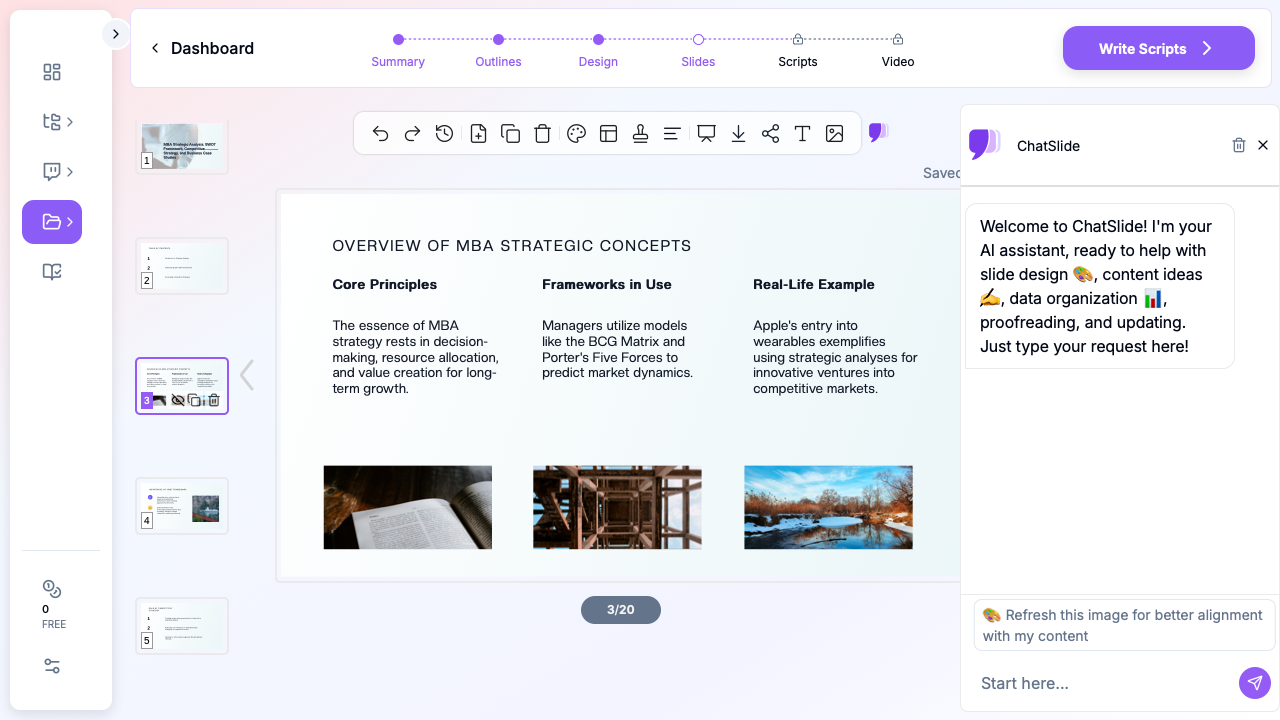
3. Refine the Outline for the Meeting
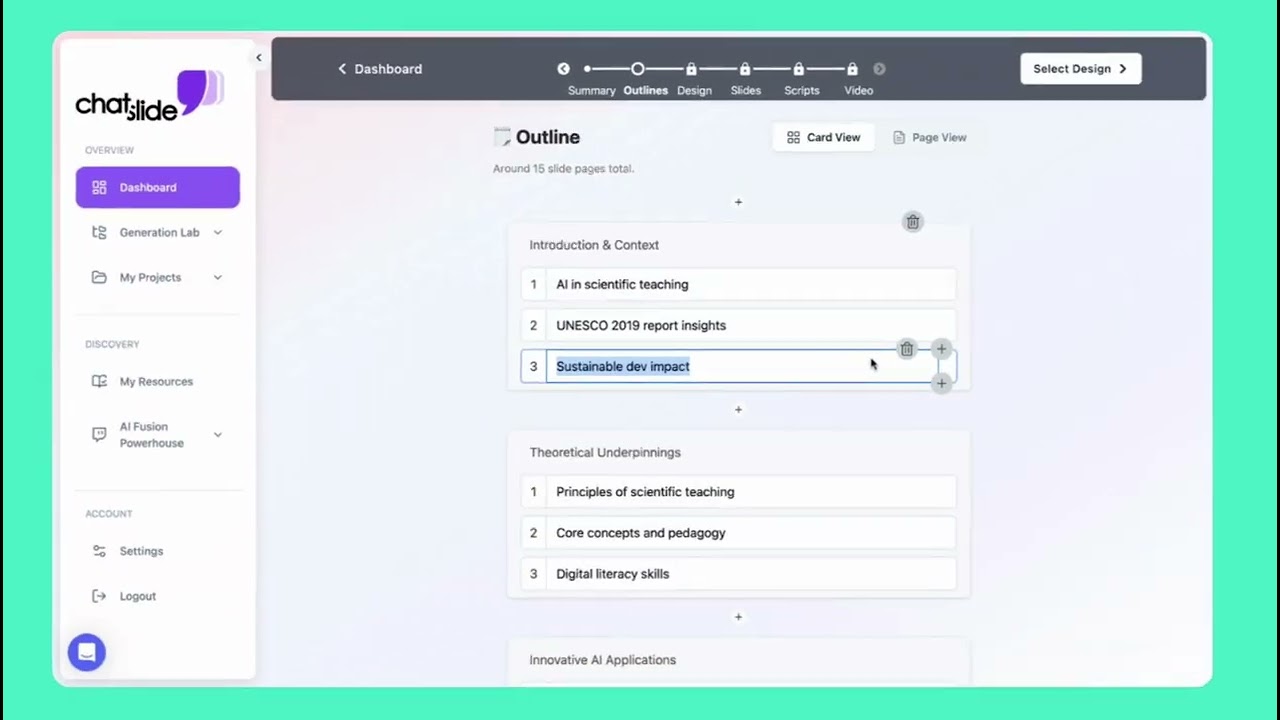
Review the generated outline and cut it to what the meeting needs. The team meeting wants workstream detail; the GC wants the snapshot, the delta, and the ask. Enforce the standing structure — snapshot, chronology, issues, risk, decisions — so this quarter's deck is comparable with last quarter's.
4. Build the Chronology and Risk Visuals
Use timeline layouts for the case chronology and a simple table or range chart for exposure scenarios. Keep damages figures in ranges with their assumptions labeled on the slide. Where a ruling changed the assessment, show the before-and-after explicitly — that one visual usually justifies the whole deck.
5. Export to PowerPoint or PDF
Export to PPTX so the team can update the deck as the case moves, or to PDF for distribution. The efficient pattern is a living master deck per matter: each reporting cycle, upload the new status memo, regenerate or update the changed sections, and archive the version presented. The next review then starts from slides that are already 80% right.
Confidentiality and Privilege in Case Review Decks
Case review presentations are typically attorney work product, and often privileged — treat the deck with the same care as the memo behind it:
- Label it. Mark the deck privileged and confidential attorney work product, and control distribution the way you would the evaluation memo. A candid exposure slide is exactly the page you do not want forwarded.
- Mind the audience boundary. A version shared with insurers, auditors, or business-side executives may carry different privilege consequences than one kept within the legal team. Prepare a trimmed external version deliberately rather than forwarding the internal one.
- Check policies before uploading designated material. Documents under a protective order or containing another party's confidential information should be handled per the order's terms and your firm's or department's technology policies — work from your own memos and redacted versions where required.
Tips for Case Summary Presentations
Keep a consistent template across the portfolio. When every matter reports with the same snapshot, chronology, and risk structure, a GC can review twelve cases in an hour and anomalies surface immediately.
Write the delta, not the history. After the first review, lead every section with what changed. The full background belongs in an appendix slide, not in minute seven of a ten-minute slot.
Quote rulings, don't paraphrase the important ones. When a court's language decides an issue, put the operative sentence on the slide with its citation, exactly as written.
Prepare the two-minute version. Portfolio reviews run over. Know which three slides — snapshot, risk, decision — carry your matter if the slot collapses.
Related Legal Presentation Guides
- How to Create a Trial Presentation with AI — when the case review turns into trial preparation
- How to Create a Law Firm Pitch Deck with AI — client development presentations for attorneys
- Law School Case Brief Presentation with AI — IRAC-structured case analysis
- PDF to Presentation with AI — the general document-to-slides workflow
For the full picture of how legal teams use ChatSlide, see the AI presentation maker for legal professionals page.
Get Started
The evaluation memo is written; the meeting is scheduled; the deck is the only thing standing between them. Upload the case documents, keep the analysis yours, and let the formatting take minutes instead of an afternoon. Start with ChatSlide — free to start, with PowerPoint and PDF export built in.